IBO Player setup guide
The complete process for installing IBO Player, adding your HawkTV playlist and tuning the app properly — on every supported platform.
Five steps, roughly ten minutes
IBO Player is the only player HawkTV supports. It installs on almost every platform, the interface is genuinely well built, and playback is smooth — which is exactly why it has become a dependable choice for IPTV users, including on non-Android televisions.
Install IBO Player on your device
Pick your platform below and follow the matching installation path. IBO Player is available for Android, Fire TV, Windows, macOS and non-Android smart TVs.
Open the app and read your Device Info
Launch IBO Player, open the profile icon on the main dashboard, and note the MAC Address and Device Key shown under Device Info. These two values identify your device.
Log into the IBODEV playlist portal
On a phone or computer, open the official IBO Player website and choose Manage Playlist from the top menu. Enter the MAC Address and Device Key from the previous step and log in.
Add the HawkTV playlist
Click Add Playlist, give it the name HawkTV, paste the playlist URL we sent you on WhatsApp, and leave the XMLTV EPG field empty so the guide is pulled from the playlist itself. Save.
Reopen the app and let it sync
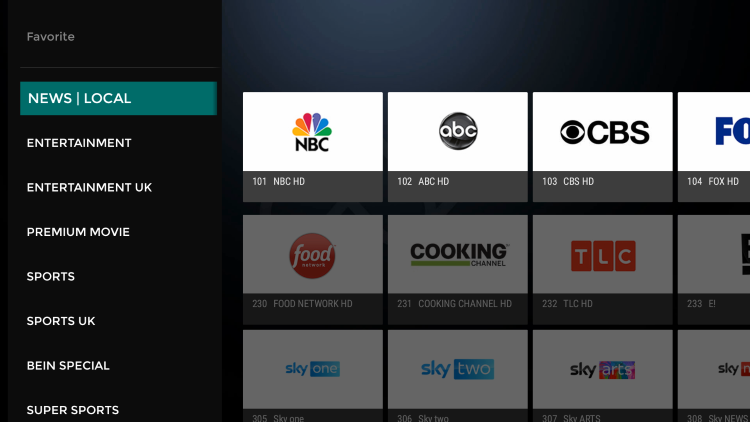
Return to IBO Player on your television or device. Within a few seconds the full channel lineup and on-demand library load in, complete with EPG data.
Remote playlist activation
Unlike most players, IBO Player does not accept credentials typed directly into the app. You register them on the IBODEV portal and their system forwards the data to your device. It is one extra step, but you only do it once.
Before you start
You need your HawkTV credentials. If you do not have them yet, order the CA$10.99 introductory plan — they arrive in under ten minutes.
Installing IBO Player on your device
Each platform has its own quirks. Find yours below and follow only that section. If your device is not listed, message us from the contact page and we will confirm compatibility.
Android phones, tablets and TV boxes
- Download the IBO Player installation file from the official IBODEV website, or ask our support desk for the direct link.
- Android will warn you that the file comes from outside the Play Store. This is expected for a sideloaded APK — choose Download Anyway.
- Open the downloaded file and press Install.
- Once installation finishes, tap Open to launch IBO Player.
- An introductory screen appears explaining the playlist process. Press OK — you will complete that part from the portal.
Amazon Fire TV Stick and Fire TV
- From the Fire TV home screen, select the magnifier icon and open the search field.
- Search for Downloader and install it. This utility lets you sideload apps that are not in the Amazon App Store.
- Open Downloader, move to the URL field beside the yellow Go button, and press OK on the remote.
- Enter the official Downloader code for the IBO Player Android build — 511693 — and select Go.
- Wait for the download to complete without pressing any other buttons.
- Fire TV will block the install. Open Settings, then Install Unknown Apps, and switch Downloader to ON. If Developer Options is not visible, highlight About and press OK seven times to reveal it.
- Return to the download and confirm through the Next and Install prompts. Press OK on the welcome message and the app is ready.
Windows 10 and Windows 11
- Download the 64-bit Windows installer from the official IBO Player download section. IBO Player requires Windows 10 or newer.
- Windows SmartScreen will interrupt because the file is not from the Microsoft Store. Click More Info.
- Click Run Anyway to proceed.
- Work through the installer: Next, then optionally tick the desktop shortcut, then Next again.
- Click Install, then Finish to open IBO Player.
macOS — MacBook and iMac
- Download the macOS build from the official IBO Player download page.
- Open the downloaded file and drag the app icon into your Applications folder.
- Open Launchpad and click the IBO Player icon. macOS will refuse the first launch because the app was not installed from the App Store.
- Click the Apple icon, open System Settings, scroll to Privacy & Security, and find the blocked application notice.
- Choose Open Anyway, then confirm Open Anyway in the dialog. This choice is permanent — subsequent launches open normally.
LG WebOS and Samsung Tizen smart TVs
- Open the LG Content Store or the Samsung Apps store on your television.
- Select the magnifier icon in the top-right corner to search.
- Type IBO Player. Several similarly named apps may appear — select the one named exactly "Ibo Player" and disregard the rest.
- Click Install, then Launch once installation completes.
- A welcome message appears on first run. Press OK and continue to the playlist steps above.
Registering the HawkTV playlist in the portal
Once the app is installed, the playlist is added from the IBODEV management portal rather than from the television itself. Two methods exist, depending on what we sent you.
Method 1 — Add Playlist (M3U line)
Use this if we supplied a playlist address as a single long string.
- From the portal you just logged into, click Add Playlist.
- Playlist name: enter HawkTV, or any label that makes sense to you.
- Playlist URL: paste the exact address we sent you on WhatsApp.
- XMLTV EPG URL: leave this empty. IBO Player will then pull the guide straight from the playlist, which matches our configuration.
- Protect This Playlist: tick this if you want the playlist secured behind a PIN.
- Click Save.
Method 2 — Add XC Playlist (Xtream Codes credentials)
Use this if we sent you a separate username, password and server address.
- From the portal dashboard, click ADD XC Playlist.
- Fill in the HOST (the server address), then the username and password we supplied.
- Name the playlist and save.
Fixing the Live TV layout
By default the live section can look untidy: channel names overflow beneath the preview window and the guide sits out of alignment. The fix takes three clicks.
- From the IBO Player dashboard, click the screen icon next to the Wi-Fi symbol.
- You are now in Live Screen Style. The default is Malai TV Style. Switch it to Thai and save.
- Channel names now have room, and the preview window and programme guide line up correctly. To bring the categories back, press the left arrow on your remote.
Adding a channel to favourites
From the channel list, press and hold on the channel you want to keep, then choose ADD. It moves into your Favourites section, which is by far the fastest way to navigate a 12,000-channel lineup. The channel lineup page breaks down every available category.
The settings that actually matter
The IBO Player settings section is dense. These are the entries that make a real difference day to day.
- Network: reports connection status. The first place to look when a stream freezes.
- Parental Control: locks whole categories behind a PIN. Essential if children share the television.
- Check for Updates: keeps the app current. Playback fixes ship regularly.
- Language: sets the interface language, independently of channel language.
- Clear Cache: run this if artwork stops loading or the on-demand library looks stale.
- Manage Categories: hides categories you never watch. This is the single setting that makes a 12,000-channel lineup genuinely usable.
- Live TV Player and VOD Player: switch the decoding engine. If one specific channel refuses to start, changing engine usually resolves it.
- Auto Boot on Start: launches IBO Player the moment the television powers on.
What IBO Player does not do
In fairness: the app records nothing and offers no multi-screen view. If either of those is essential to you, IBO Player is the wrong tool — and since HawkTV supports only this player, it is worth knowing before you order. Our frequently asked questions revisit this point.
Ready to see what HawkTV actually delivers?
Start on the CA$10.99 introductory month, or message us on WhatsApp — a Canada-based advisor replies in under ten minutes, around the clock.
Order my subscription